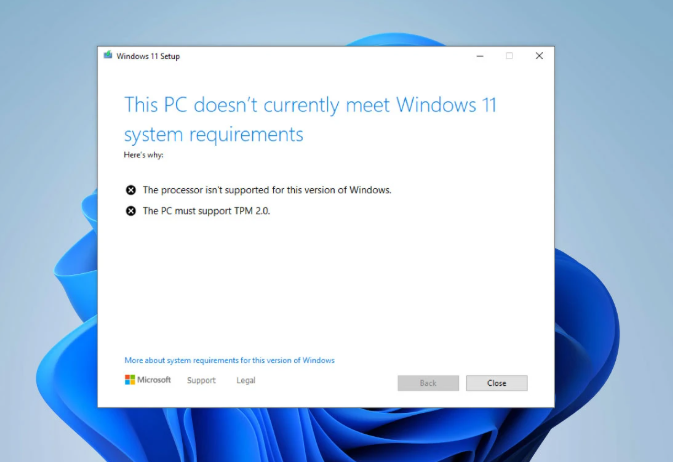
Have you ever tried to install Windows 11 and bumped up against the “Your PC doesn’t meet the minimum system requirements” brick wall? There are a handful of reasons for this and one of them is when the hardware lacks a TPM module. I’ve run across this on a handful of occasions, specifically when setting up a lab for some testing on older but perfectly functional hardware. Let’s talk about how you can get over this hurdle for your experimental, lab, and testing purposes.
A Trusted Platform Module (TPM) is an important hardware chip that acts as a secure, root-of-trust for your computer by storing cryptographic keys, passwords, and digital certificates. It prevents unauthorized tampering with your device’s security and ensures that your system integrity remains intact. While TPM technology has existed for many years, the mandatory enforcement of a TPM for Windows operating systems became a strict requirement with the launch of Windows 11. For many consumers, anything that you’ve purchased in the last few years is most likely TPM compliant. There are cases though, where running Windows 11 on unsupported hardware (without a TPM) is a thing. An example of this is lab testing and lab evaluation of OS features, on hardware that you already have available to you but without a TPM.
As for getting over the hurdle, there’s good news. Perhaps by recognizing that enterprises need a means to test or maybe to avoid extreme backlash, the OS developers made it possible to bypass the TPM requirement. However, they also make it 100% clear that this is not recommended, is 1,000% fully unsupported, and potentially results if not receiving important security updates. In a nutshell, you’re on your own.
If you aim to do some lab testing that requires bypassing the TPM requirement when doing a clean Windows 11 installation, proceed as follows:
- Start Windows 11 install from a bootable ISO
- Go through prompts until the wizard is at the screen where you choose your Windows version (i.e. Enterprise, Enterprise N, etc.)
- Before choosing your OS version, press Shift+F10 which will open a CMD Prompt
- Type regedit
- Create the Registry Key HKLM\System\Setup\LabConfig
- In the LabConfig Key, create a DWord (32-bit) value named “BypassTPMCheck”
- Define the data for BypassTPMCheck as 1 (in Hexadecimal)
- Close Regedit and CMD Prompt
- Choose your preferred Windows Version
- Continue Installation Wizard as usual